How to Transfer
Fitbit or Google Health
Data to Garmin Connect
Switched to Garmin and realised your years of Fitbit or Google Health data aren't coming with you? This guide covers everything for both audiences: what transfers, how to get your export, how the conversion works, and how to get it all into Garmin Connect without losing your mind. The export and conversion process is the same whether your phone app says Fitbit or Google Health.
For context on why people are moving: Read the full audit of what changed in the May 2026 rebrand →
What data actually transfers
Before you do anything, it's worth knowing what Garmin Connect will and won't accept. The limitation isn't Fitbit, it's what Garmin's importer supports. There's no workaround for the things that don't transfer.
Step 1. Export your data
Both the manual and automated methods start the same way: you need a Google Takeout export of your data. This is the official way to get everything out in one go. Note that the data category in Takeout is still labelled Fitbit even if your phone app now says Google Health. It's the same underlying export for both audiences.
- 1.Use this direct link to open Google Takeout with Fitbit already selected. Sign in if prompted.
- 2.Click "Next step" at the bottom of the page.
- 3.Leave delivery as "Send download link via email." File type: .zip, size: 2GB. Click "Create export."
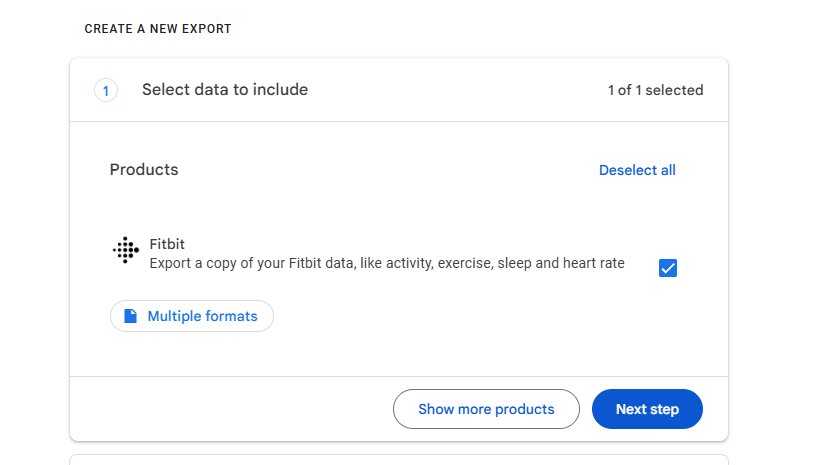
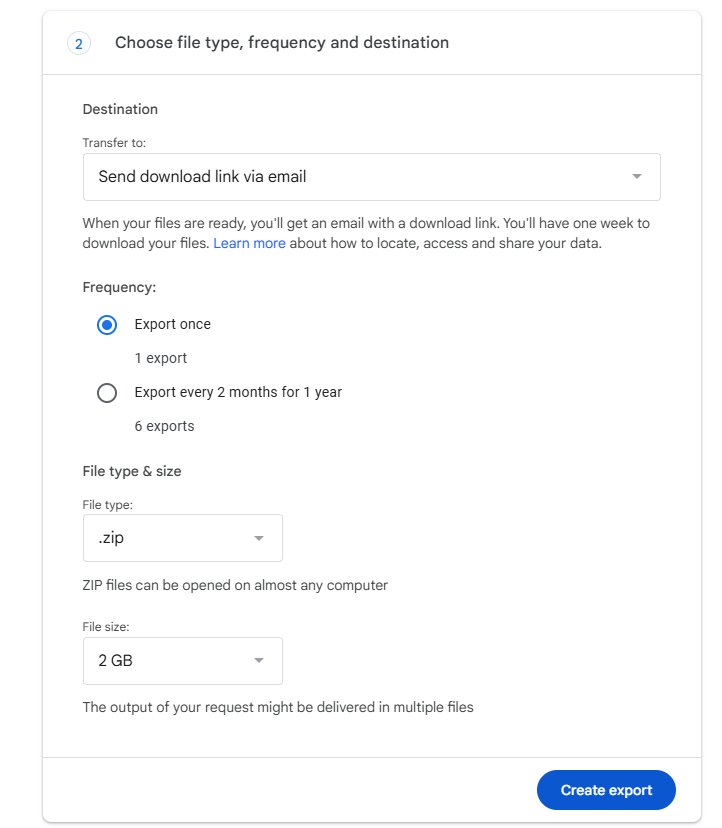
Google will email you a download link. Smaller accounts (1-2 years) usually get it within a few minutes. Larger exports can take a few hours. When it arrives, download the ZIP. Do not extract it.
The manual conversion method
This section is here so you understand what the conversion actually involves. If you want to skip to the automated option, go ahead. But knowing what's under the hood is useful if anything goes wrong.
Your Fitbit export contains hundreds of individual JSON files. Each file covers one day of one data type. For three years of data, that's potentially thousands of files with names like calories-2023-01-01.json, steps-2023-01-02.json, and so on.
Garmin Connect needs a single CSV file per year, with specific column headers in a specific order. Getting from the Fitbit JSON export to that CSV requires the following steps:
Parse each JSON file
Each file contains per-minute data, not daily totals. You cannot just copy the numbers, you need to sum every minute-level entry for each day to get a usable daily figure. There is no shortcut here.
Handle unit conversions
Fitbit stores distance internally in centimetres, not kilometres or miles. You need to divide by 100,000 for km or 160,934 for miles. Weight is stored in lbs regardless of what your Fitbit display was set to, you need to convert to kg if you want metric output.
Correct for timezones
Timestamps in the Fitbit export are UTC. If you are not in UTC, your dates will be wrong. A step logged at 11pm your local time might appear on the next calendar day in UTC. You need to apply the correct timezone offset to bucket every entry onto the right date.
Apply the recent data cutoff
Fitbit syncs data to Google's servers in batches, not in real time. At the moment you request a Takeout export, your most recent days are often only partially synced, you might have morning steps but nothing after noon, for example. Garmin's importer rejects files that contain incomplete daily entries. You need to identify a safe cutoff point, typically 3 days before the export date, and strip any rows after that from your output.
Format to Garmin's CSV spec
The Garmin activities CSV must start with a specific two-row header. The columns must be in the exact right order. Values must be quoted. Get any of this wrong and the importer rejects the file with no useful error message.
Split by year
Garmin's importer is more reliable with one file per year. You need to split your output into separate files, activities_2023.csv, activities_2024.csv, and so on.
Repeat for body data
Weight, BMI, and body fat percentage use a different JSON file structure and a different CSV format. That is a completely separate parsing and formatting pass.
If you are comfortable with Python or another scripting language, this is achievable. Budget a solid afternoon for it, including debugging and test imports. If you are not a programmer, this is not realistically an option.
Just want to add a single body composition entry to Garmin Connect? Use the free body composition CSV generator, enter your weight, height, and body fat %, download the file, and drag it into Garmin Connect. No code, no sign-up.
The automated method, Wearable Converter
Wearable Converter handles every step above automatically, in your browser, in under 90 seconds. Your data never leaves your device, everything runs client-side with no upload.
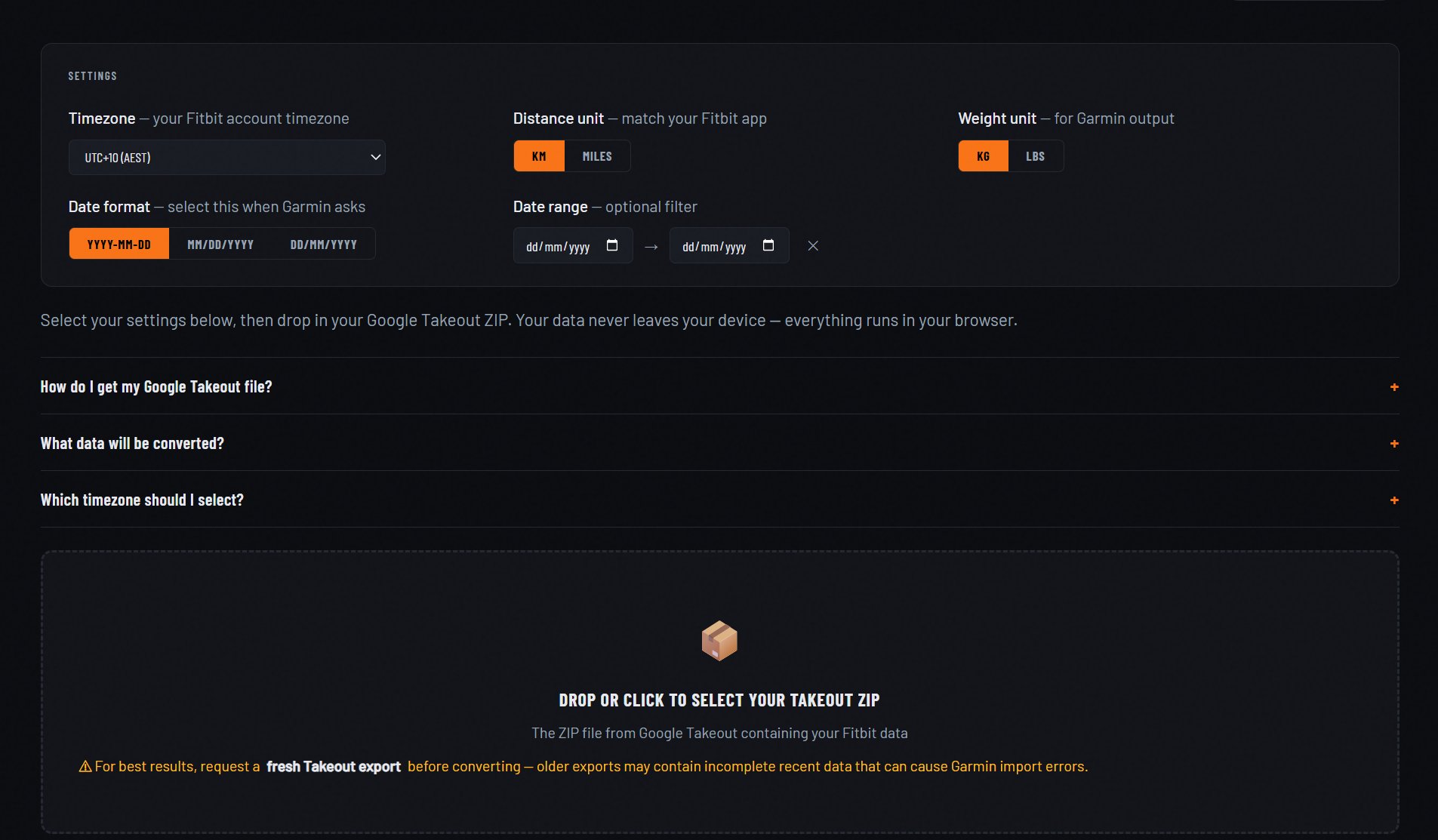
- 1.Go to wearableconverter.com and purchase access for USD $19. You'll receive a licence key by email within a few minutes.
- 2.Enter your licence key on the tool page to unlock the converter.
- 3.Set your timezone (your Fitbit account timezone), distance unit, weight unit, and date format.
- 4.Drop your Google Takeout ZIP into the converter. That's it.
The converter parses all the JSON files, aggregates per-minute data into daily totals, handles all unit conversions, corrects for timezones, strips the trailing incomplete data, and outputs Garmin-ready CSV files split by year. You download a ZIP containing everything ready to import.
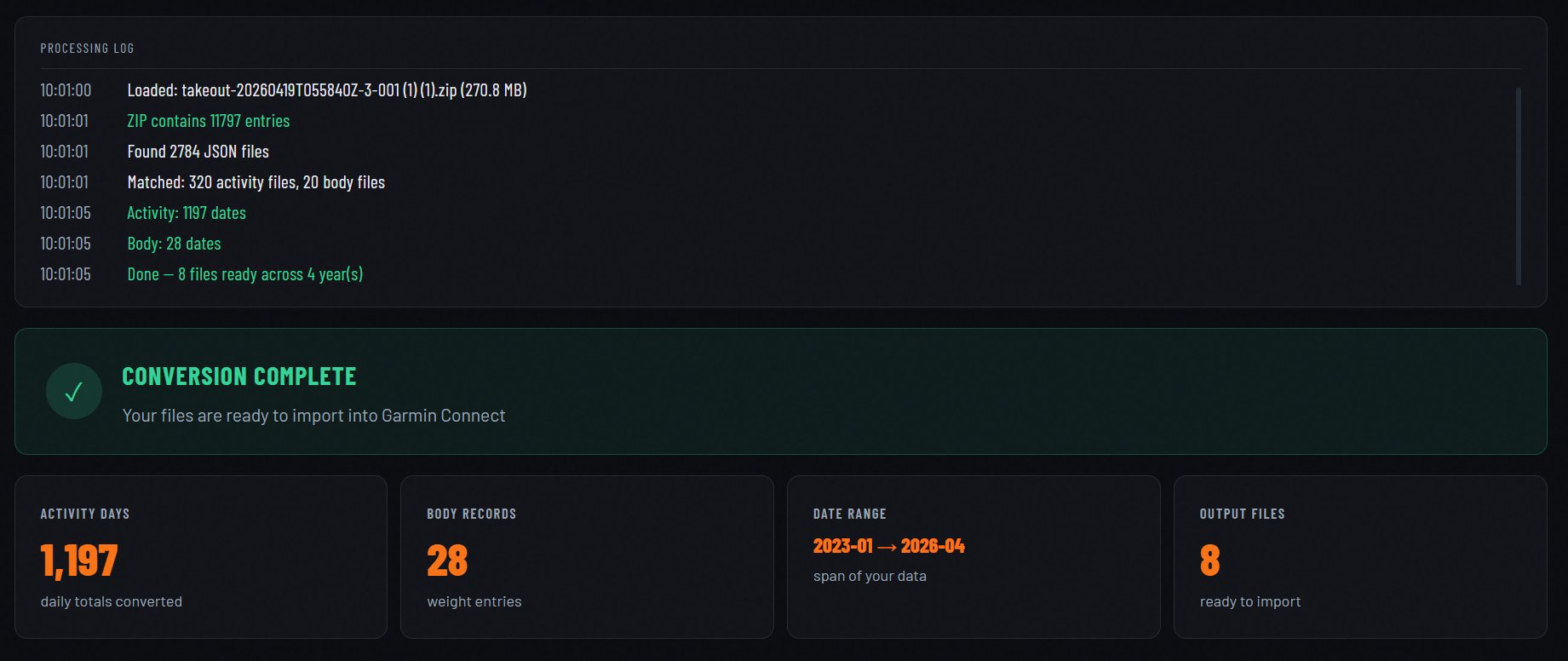
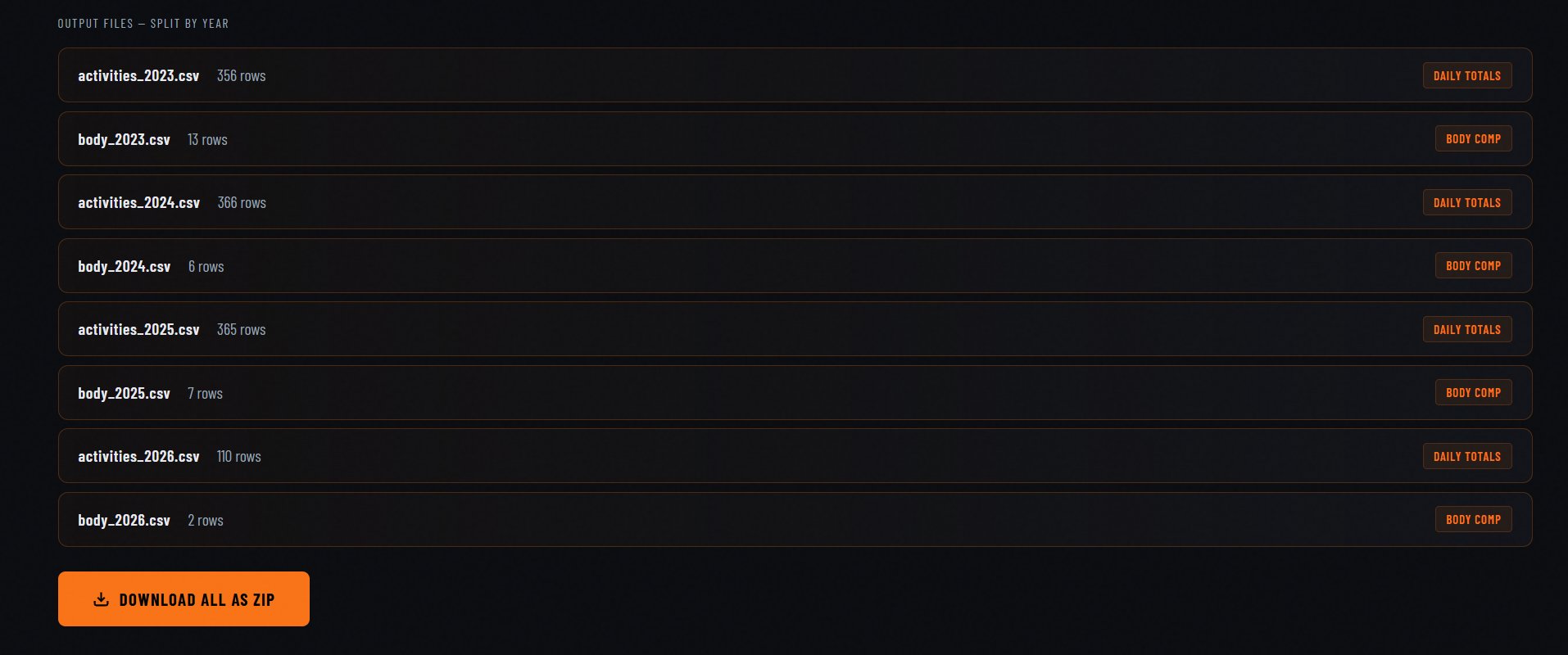
Step 2. Import into Garmin Connect
Once you have your CSV files (from Wearable Converter or manual conversion), here is how to get them into Garmin Connect.
- 1.Go to connect.garmin.com and log in.
- 2.Click the upload icon in the top right corner of the screen.
- 3.Select "Import Data" from the dropdown.
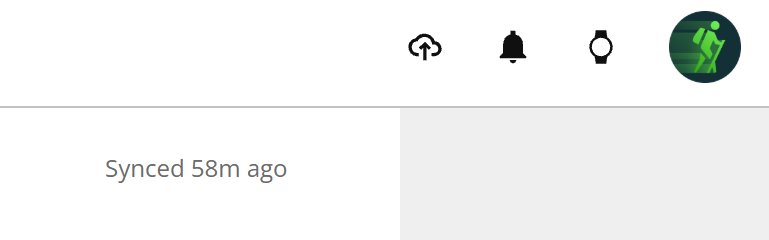
- 4.Click Browse and select your first file. Start with the oldest year first, e.g.
activities_2023.csv. - 5.Garmin will show an "Import Fitbit Data" modal asking about your units and date format. Set Length Units and Weight Units to match what you chose in Wearable Converter. For Date Format, select the same format you chose in the converter (the default YYYY-MM-DD appears as 2026-12-31 in the dropdown). Click Continue.
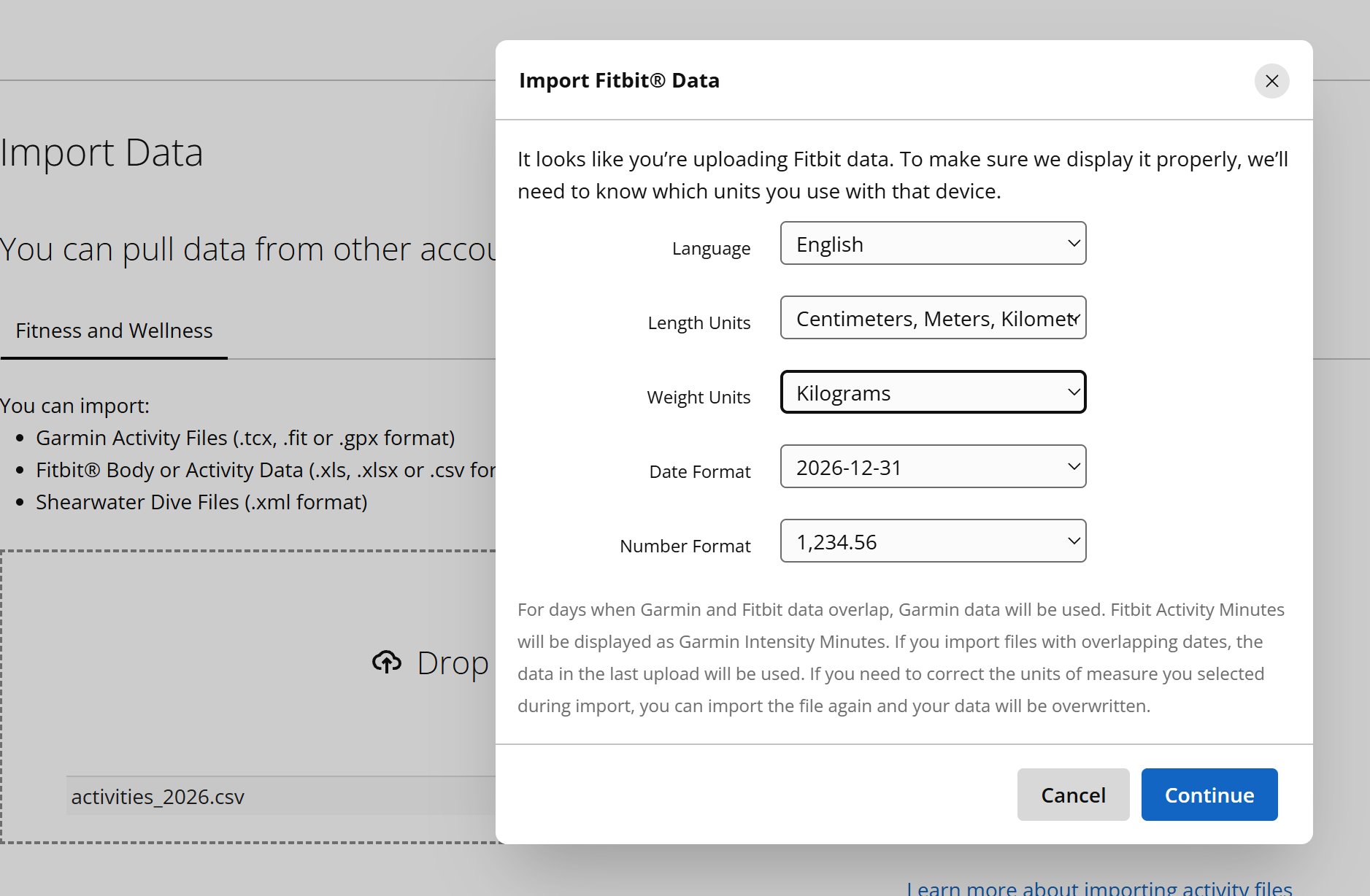
- 6.Wait for the import to complete before uploading the next file. Import one file at a time, oldest to newest.
- 7.Repeat for each activities file, then each body file.
Dealing with Garmin Connect errors
Garmin Connect's importer is notoriously buggy. Errors during import are extremely common and almost never mean your files are wrong. Here is what each error actually means:
"An error occurred with your upload"
This is a Garmin bug that affects all CSV uploads, it is not related to your files. Simply click the upload button and try the same file again. It almost always succeeds on the second or third attempt. Do not change anything about your file. If the same file still fails after three attempts, the full list of causes for this error covers what to check next.
"Your upload is still processing"
This actually means the import worked. Garmin's backend is processing the data in the background. Leave it alone and check back in 30 to 60 minutes. The data will be there.
File keeps failing after multiple attempts
If a specific file fails more than three times in a row, skip it and move to the next year. Come back to the failing file later, Garmin's servers are sometimes overloaded at peak times and the same file will go through without any changes if you wait and retry.
Where to find your data after import
Once all files are imported, your historical data appears in the following places in Garmin Connect:
- ·Steps, distance, calories, floors, active minutes: Health Stats section in the left sidebar.
- ·Weight, BMI, and body fat: Health Stats then Weight.
Data may take a few minutes to appear after a successful import. Minor differences between Fitbit and Garmin totals are normal, they're the result of timezone corrections and how Fitbit stores internal data, not conversion errors.