Guide News Free Tool Already have a key?
Note: Google Takeout still labels the data category "Fitbit" even though the app is now Google Health. That's normal, the underlying data is identical.
Complete Export Guide

How to export your
Google Health data.

Step-by-step guide to getting your full Fitbit/Google Health activity history out of Google's servers, plus exactly what's in the export and what you can actually do with it.

On this page
Section 01

Why people are
exporting right now

Google Takeout has always been there, but searches for Fitbit and Google Health exports spiked in 2026 for three specific reasons.

The Google Health rebrand (19 May 2026)

The Fitbit app was renamed and rebuilt as Google Health. Badges, the Sleep Profile, the social feed, and several other features were removed. The Health Coach now costs $9.99 USD per month. A lot of long-term Fitbit users decided that was the moment to back up everything and look at alternatives.

The 15 July 2026 data deletion deadline

If you never migrated your old Fitbit account to a Google account, Google starts permanently deleting that data on 15 July 2026. Exporting via Takeout is the only way to keep a copy. This deadline does NOT affect you if you already migrated to a Google account or if your account uses Google Health. Your data is safe and you can export at your own pace.

Switching to a different device

Garmin, Apple Watch, Polar, Suunto, Oura. Whatever you're switching to, your years of Fitbit/Google Health history is locked behind the export. Without it you start from zero on the new platform.

Section 02

How to export
(3 minutes)

The whole process takes about 3 minutes of your time. Google then takes anywhere from a few minutes to a few hours to actually prepare the file and email you the download link.

01. Go to Google Takeout

Use this direct link to open Google Takeout with the Fitbit data category already selected. If you'd rather start from scratch, go to takeout.google.com, click "Deselect all", then scroll down and tick "Fitbit".

Yes, it's still called Fitbit in Takeout even though the app on your phone is now Google Health. The data category name didn't change with the rebrand. Tick that one.

02. Choose export settings

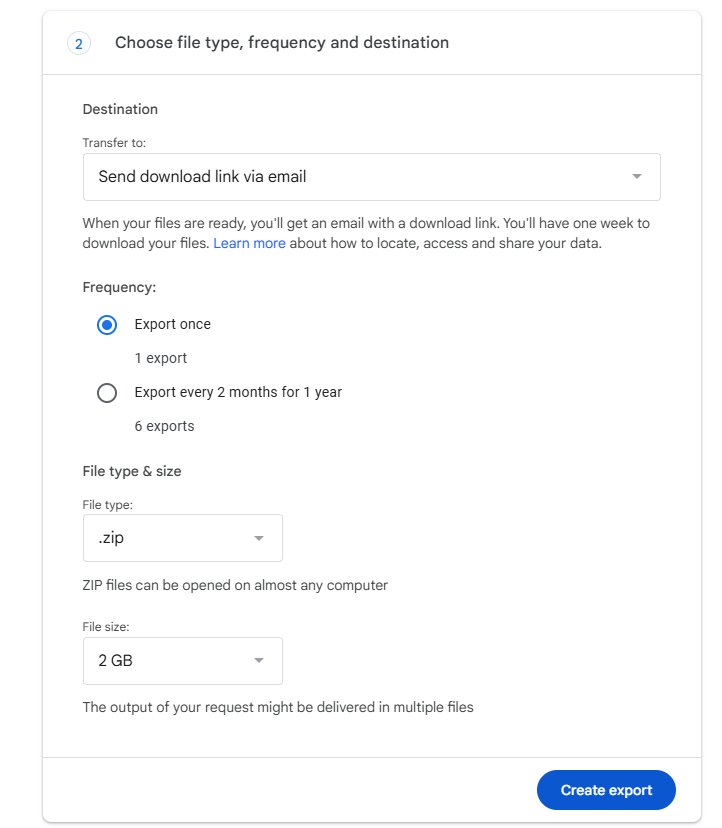
Click "Next step". Leave the file type as ZIP and the file size at 2 GB unless you have a specific reason to change them. For frequency, select "Export once".

Google Takeout settings page showing ZIP file type and export once option

03. Create the export

Click "Create export". Google does the work in the background and emails you a download link when it's ready. For most accounts this takes between a few minutes and an hour. For very large accounts (5+ years of data) it can take several hours. You can close the tab, the email arrives whenever it's done.

04. Download the ZIP

When the email arrives, click the download link. Google requires you to sign in again for security. The download links expire after a few days, so save the ZIP somewhere safe (or convert it to Garmin Connect format straight away using Wearable Converter).

Section 03

What's actually
in the export

The ZIP contains a folder called "Takeout" and inside that, a folder called "Fitbit". Everything is JSON. Here's what each subfolder holds.

Folder

Global Export Data/

Daily summary files. Steps, distance, calories, floors, active minutes, sedentary minutes, very/lightly/fairly active minutes. One JSON file per data type per month. This is where most of your useful history lives.

Folder

Personal & Account/

Profile info, your goals, your devices, your account settings. Mostly admin data, useful if you want a record of your account but not much value for import to another platform.

Folder

Physical Activity/

Individual workout records, distance, exercise logs. Higher detail than the daily summaries. Useful if you want to re-create individual workouts on another platform, though most platforms can't import historical workouts in this format.

Folder

Sleep/

Every sleep session with start time, duration, stages (light/deep/REM). Detailed and complete. Unfortunately, no fitness tracking platform we know of will import historical sleep data, so this is mostly for personal reference or analysis.

Folder

Heart Rate/

Continuous heart rate readings, often every few seconds. This folder is usually the biggest in the export, by far. No other platform accepts historical heart rate data either.

Folder

Body/

Weight, BMI, body fat percentage entries, whether logged from a Fitbit Aria scale or entered manually. This data IS importable to Garmin Connect (via Wearable Converter), which is a meaningful win if you've been tracking body comp for years.

Section 04

Quirks to
watch out for

The export format has a few things that catch people out. Worth knowing before you do anything with the data.

Units are always imperial

Even if your Fitbit/Google Health app displays kilometres and kilograms, the export stores everything internally in miles and pounds. If you process the data without converting, you'll end up with values that look wildly wrong (around 1.6x too small for distances, around 2.2x too high for weights).

Dates are UTC, not local time

Every timestamp is recorded in UTC. If you live east of UTC (Australia, New Zealand, much of Asia), some of your activity is going to show up under the wrong calendar day if you read the dates literally. Anything that aggregates daily totals needs to apply your timezone offset before summing by date.

Recent days are often incomplete

Your wearable syncs to Google's servers in batches, so an export requested today won't necessarily have today's full data, or even yesterday's. If you're switching platforms, plan for a few days of overlap or request a fresh export after a day where you've definitely synced.

One file per data type per month

Your steps history for 3 years is split into about 36 separate JSON files, one per month. Same for distance, calories, every other metric. If you want a single CSV of your full step history, something has to read all those files and merge them in date order.

The folder is still called "Fitbit"

Inside the ZIP, you'll see Takeout/Fitbit/ even though the app on your phone says Google Health. Google didn't rename the export structure. This is normal and means your export worked.

Section 05

What to do
with your data

Three common paths once you have the ZIP.

Option A

Keep it as a backup

If you're not switching platforms and you just want a copy of your history before Google changes something else, save the ZIP somewhere safe (cloud drive, external drive, both) and you're done. You can request a fresh export any time.

Option B

Analyse it yourself

If you're technical, the JSON format is straightforward to parse with Python (pandas), R, or even Google Sheets if you're patient. Watch out for the unit and timezone quirks above. Useful for visualising long-term trends in your own way, or building things that no fitness platform offers (yearly heat maps, decade-spanning comparisons, custom reports).

Most common
Option C

Import it to Garmin Connect

If you're switching to Garmin (or already have a Garmin and want to consolidate your history), Wearable Converter is purpose-built for this. It handles the unit and timezone conversions, merges the files, and outputs Garmin-ready CSVs split by year. Includes body fat percentage transfer without needing a Garmin Index scale.

Read the Garmin guide Go straight to the tool
FAQ

Export
questions.

Common questions about exporting your Fitbit/Google Health data. If something isn't answered here, email [email protected].

📦
Free export, alwaysGoogle Takeout is free for any Google account. There's no premium tier or limit.
Setup takes 3 minutesGoogle then takes anywhere from minutes to hours to prepare the file.
🔄
Request fresh anytimeRe-export whenever you need more recent data, no limit on how often.
📂
JSON files inside a ZIPStandard format that any programming language or modern tool can read.
Why is the export still labelled "Fitbit" in Takeout?
Google rebranded the app to Google Health on 19 May 2026, but didn't rename the underlying data category in Google Takeout. The folder structure, file names and data format are all unchanged. Tick "Fitbit" to export your Google Health data, the label just hasn't caught up with the rebrand.
How long does the export take?
The setup takes about 3 minutes. After that, Google prepares the file in the background and emails you when it's ready. For most accounts this is between a few minutes and an hour. Very large accounts (5+ years of detailed heart rate data) can take several hours.
Will the export delete my data from Google Health?
No. Google Takeout copies your data into a downloadable archive. Your Google Health account stays exactly as it is. If you want to delete your Google Health data, that's a separate action you'd do through the Google Health app or your Google account privacy settings.
Does my export include recent days?
Sometimes not fully. Your wearable syncs to Google's servers in batches, so an export requested today may not include today's full data, or even yesterday's. If you need today's data, sync your wearable first, wait an hour or so, then request the export.
Can I export specific data types only?
Yes. On Google Takeout, after selecting the Fitbit category, you can click "All Fitbit data included" to choose specific subfolders. If you only care about steps and distance, you can skip the multi-gigabyte heart rate folder. If you want everything, leave it as-is.
How big will the export be?
Depends entirely on how long you've used Fitbit/Google Health. A casual user with 1-2 years of data and no continuous heart rate may have an export under 50 MB. A heavy user with 5+ years of continuous heart rate, sleep stages and workouts can easily have a 1-2 GB export. Google splits anything over your selected size limit (default 2 GB) into multiple ZIPs.
How long does the download link stay active?
Google's emailed download links expire after about 7 days. After that, the export is deleted from Google's servers and you'd need to request a new one. Save the ZIP to your own storage straight away if you want to keep it.
Can I import this export back into Fitbit/Google Health?
No, there's no re-import mechanism. The export is one-way: out. This is partly why people use it as a backup before any major account changes.
What if I want to move my data to Garmin?
Wearable Converter handles the conversion. Drop the ZIP into the tool, it produces Garmin-ready CSV files split by year. Read the Google Health to Garmin page for the full workflow, or the shared step-by-step guide.
What if I never migrated my Fitbit account to Google?
Google deletes any Fitbit data that was never migrated to a Google account on 15 July 2026. If that's you, exporting now is the only way to keep a copy. Read the Fitbit to Garmin page for the migration-specific details.
Now that you have the export

If you've just finished your Google Takeout export and need to convert the JSON to CSV, these pages cover each angle.

Google Takeout to CSV → Fitbit to CSV → Google Health to CSV → JSON to CSV →